Installation
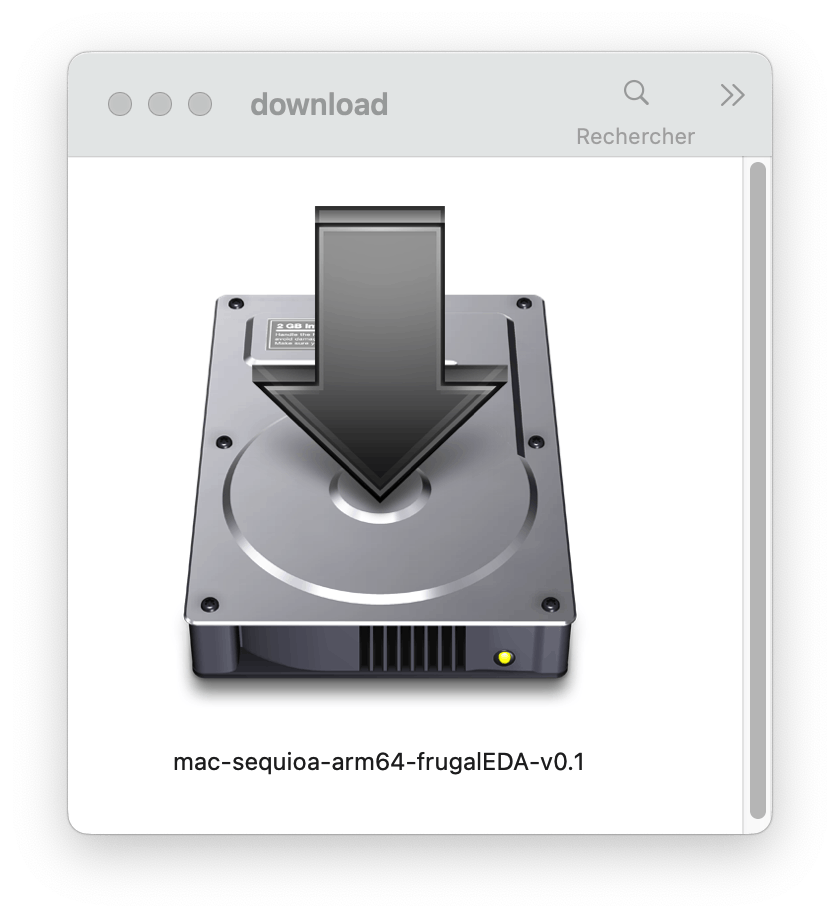
Double-click on the downloaded FrugalEDA installer at https://gitlab.com/frugaleda that corresponds to your computer Operating System (OS). For example on Macintosh:
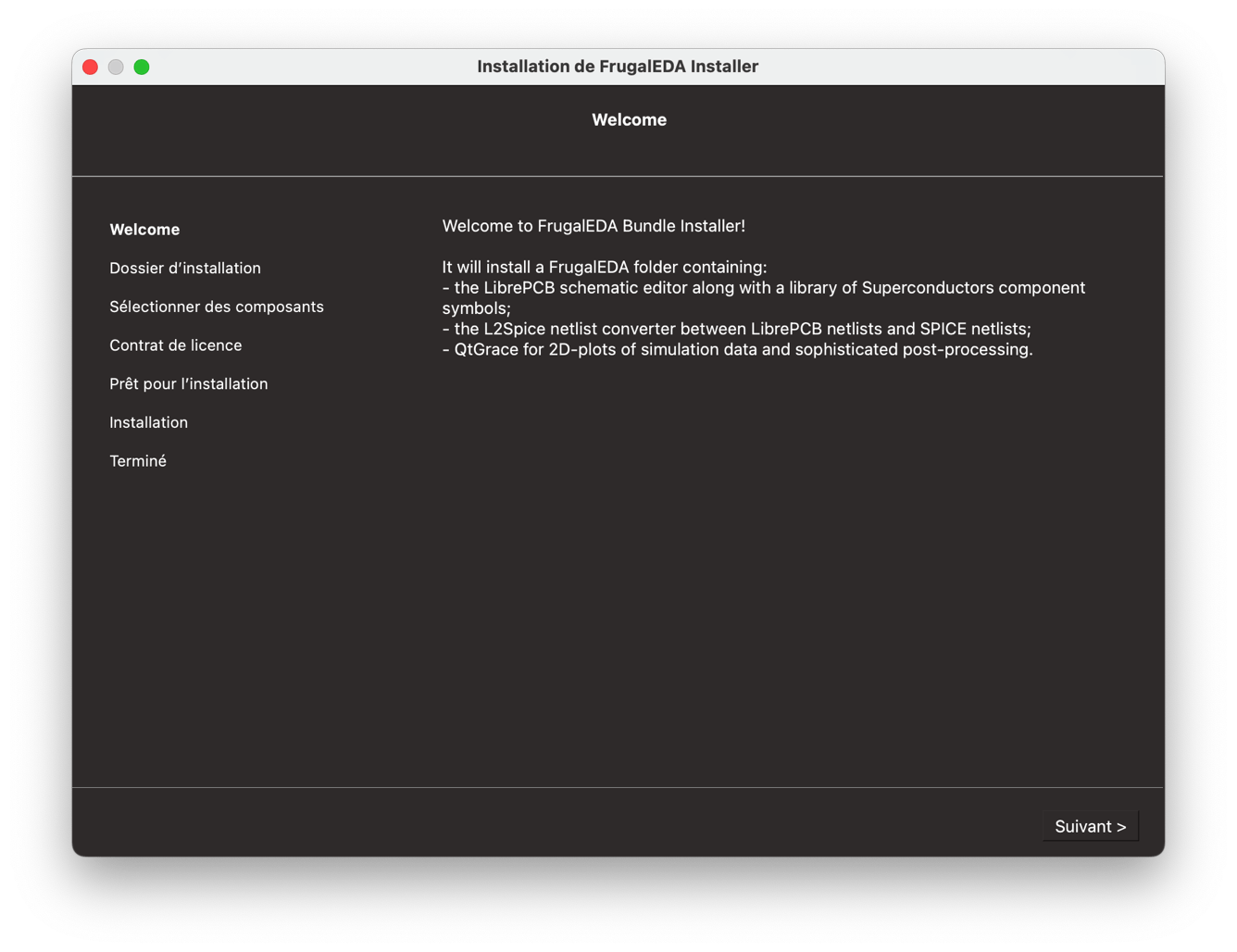
You should see the following self-explanatory welcome menu of the installer, in the language of your computer OS:
You can choose the folder where FrugalEDA software suite will be installed. Note that the FrugalEDA software is isolated from other applications that you may already have on your machine. For instance, if you already have an older version of LibrePCB, it will not be modified: FrugalEDA will install its own version of LibrePCB (1.3.0 in this case). For the same reason, if you decide to uninstall the FrugalEDA folder with the installed maintenance tool, it will keep your other existing applications as well as your workspaces.

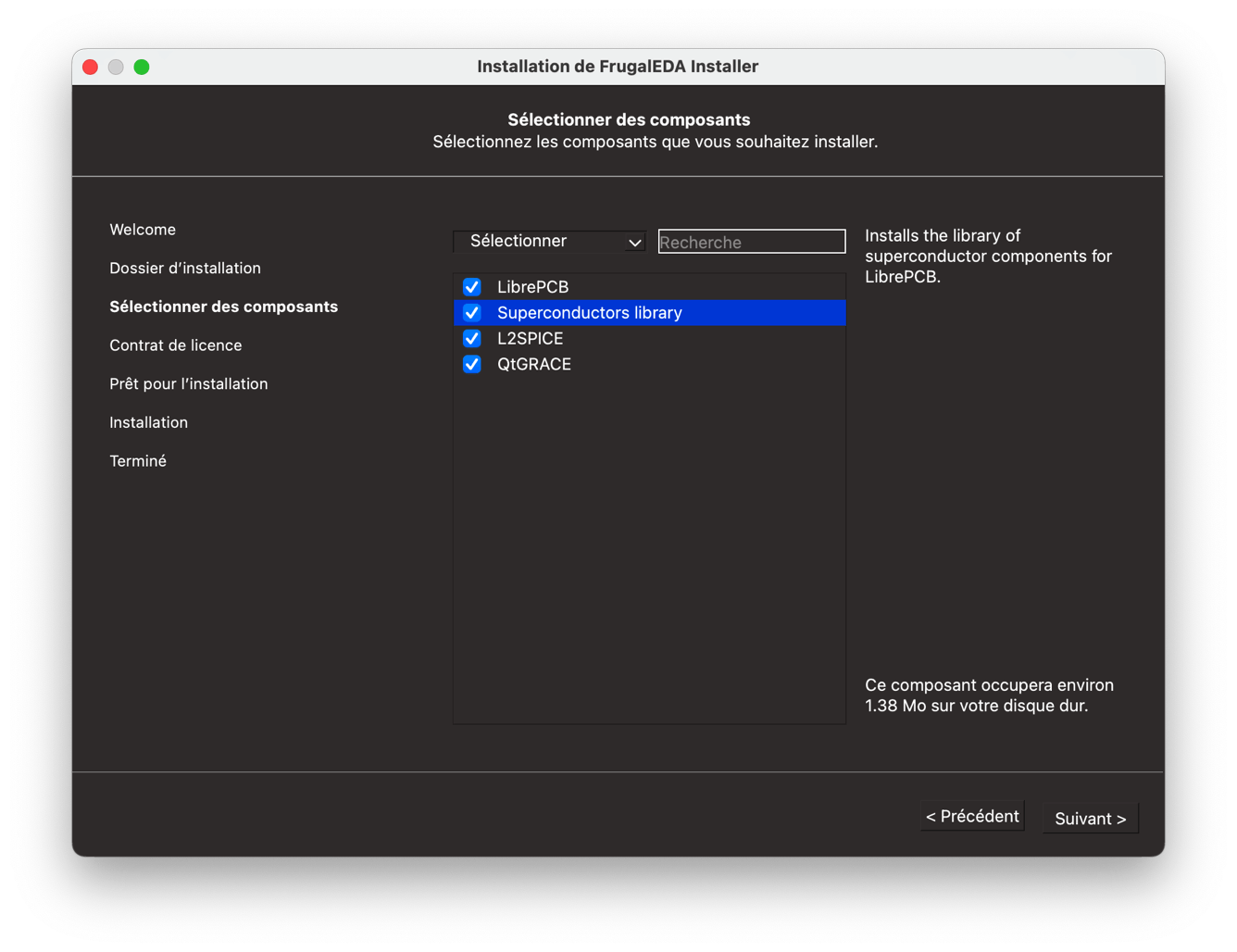
Then you can choose the software you want to install. We recommend you install them all (default case) since they are all needed to design a circuit. Note that you can also install QtGrace and LibrePCB (without superconductor library and without our specific examples) directly from internet.
LibrePCB and L2SPICE use their own workspace to save data, which are different from the FrugalEDA folder where software is installed. Consequently, your previous LibrePCB or L2SPICE data will NOT be erased or overwritten if you install LibrePCB or L2SPICE again.
If you have already LibrePCB or L2SPICE installed somewhere else on your machine, you can use them the same way as the versions of this installer. In this case, you do not need to install them again with FrugalEDA. Just be aware the software versions may differ.
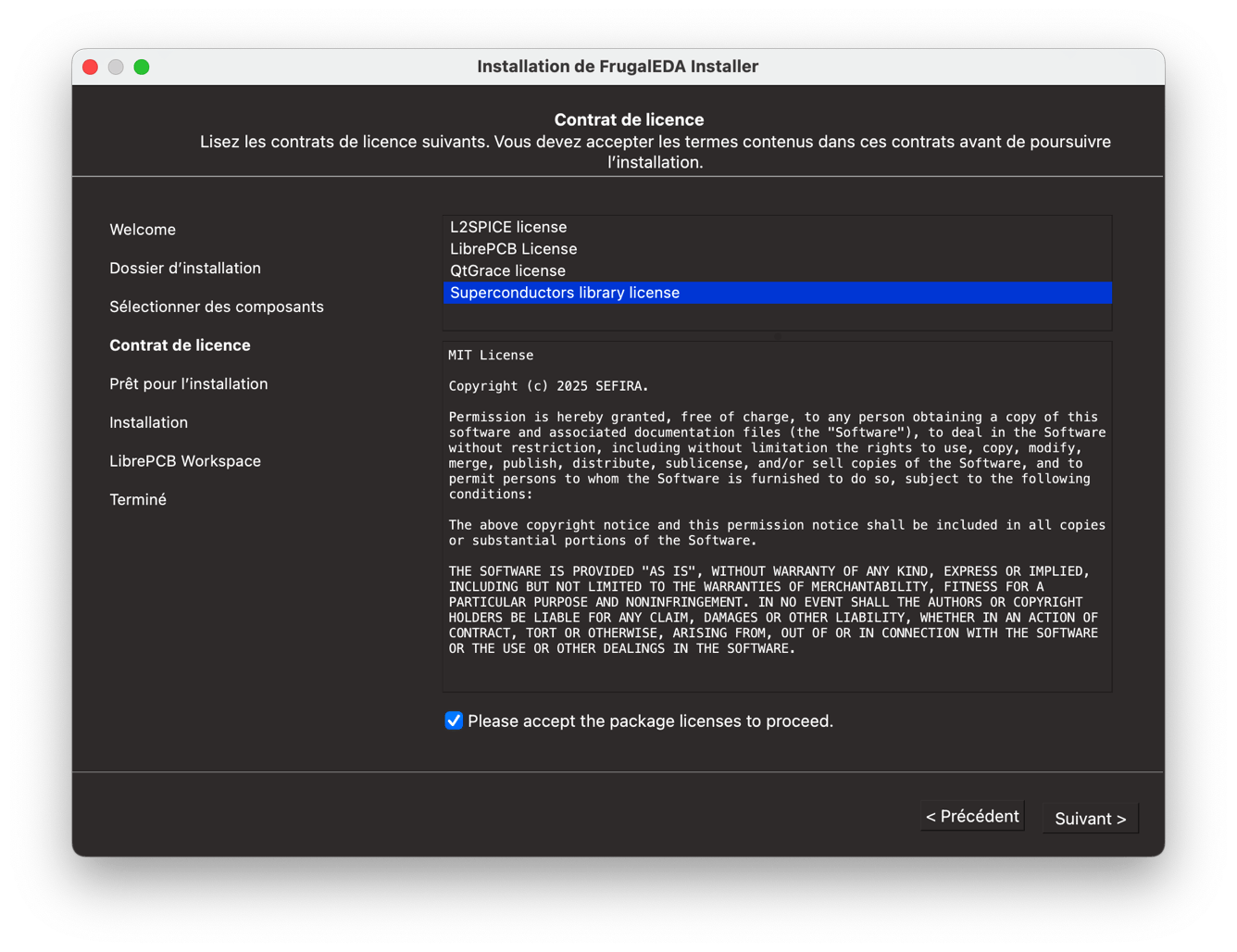
Then you need to accept the licenses for each package.
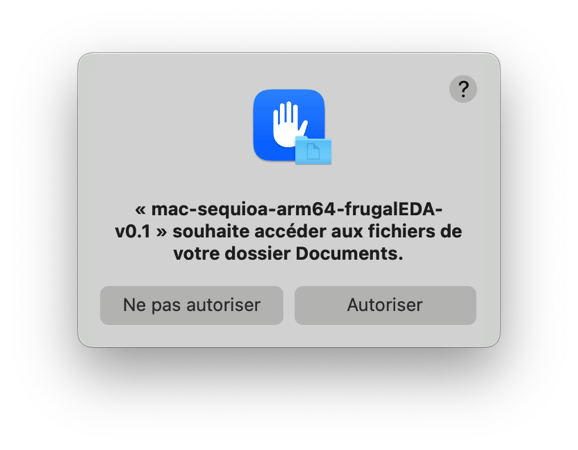
During installation, you may have to give some access authorization on your machine (especially with MacOSX) to place the software on your disk.
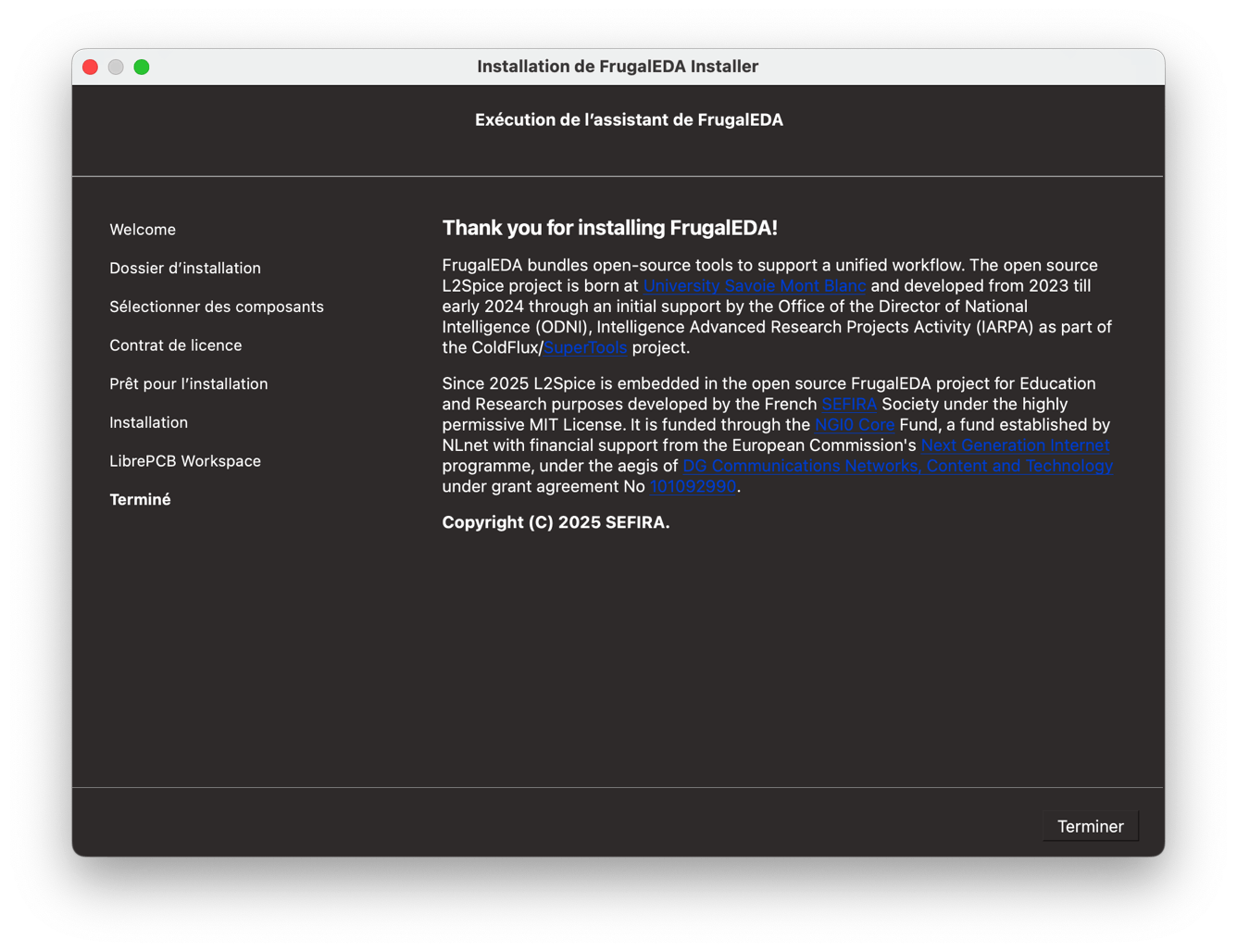
Once the installation is done, you are informed about the location of the LibrePCB Workspace folder, which is either the existing one if it was found on your machine, or the one installed by FrugalEDA installer placed in your home directory by default.

At last, you can close the installer once you are shown the final page.
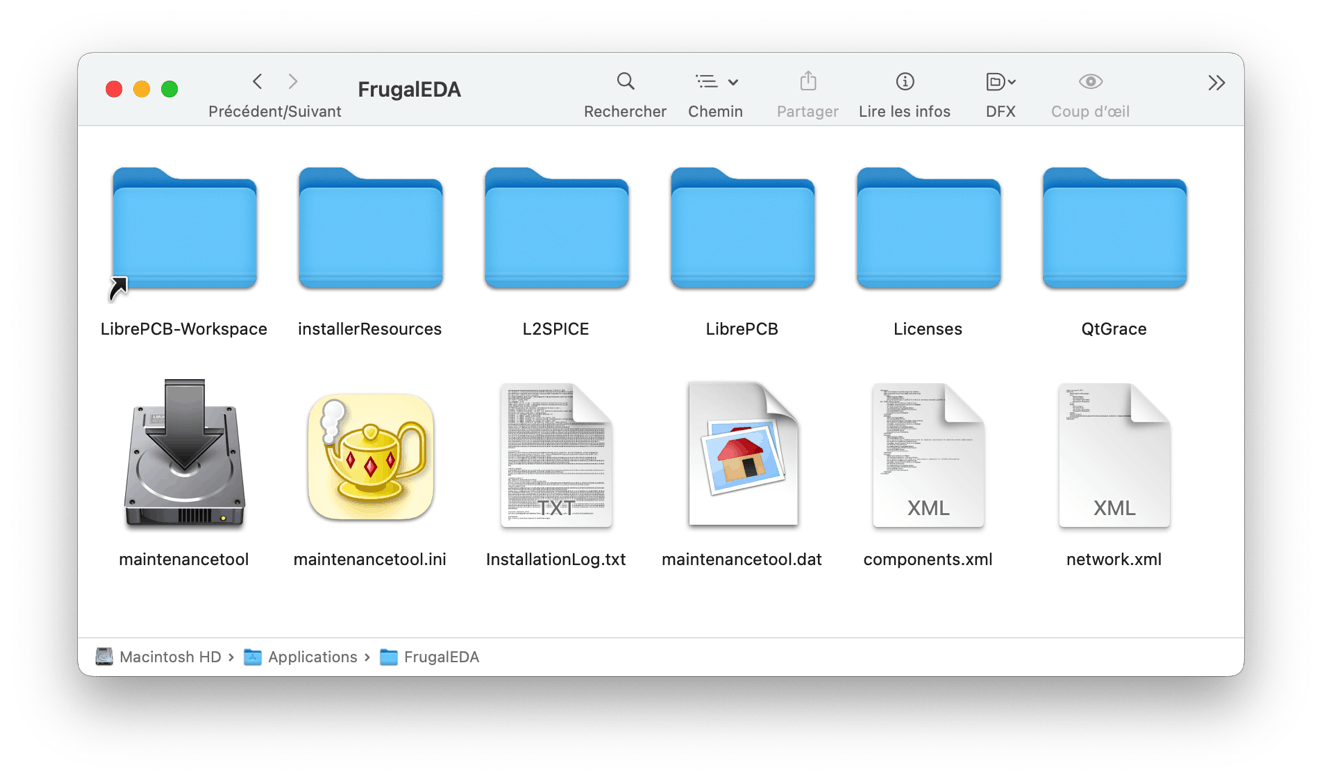
Installed FrugalEDA folder
You can check the content of FrugalEDA folder at the location you chose at the beginning of installation.
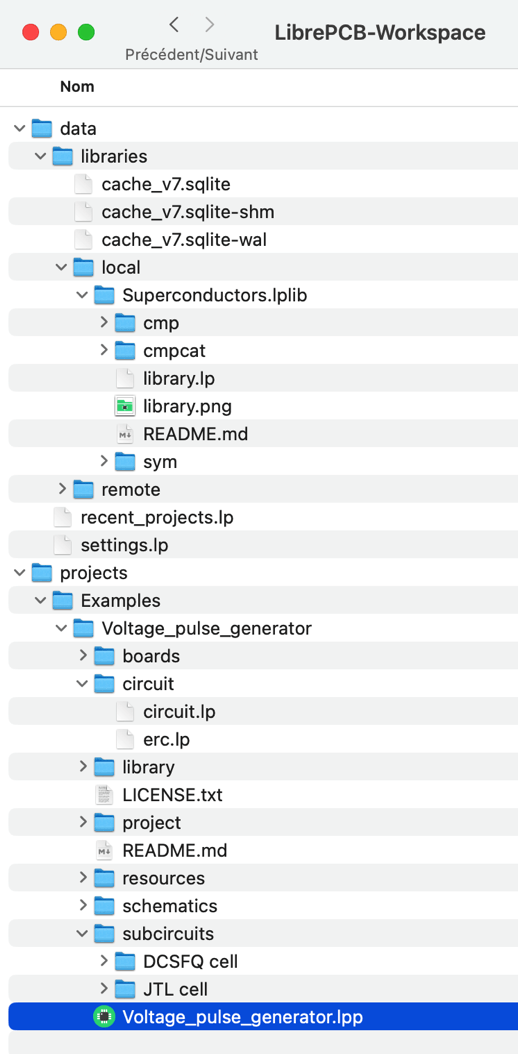
There is in particular a link for direct access to the LibrePCB Workspace. You can see the local superconductor library Superconductors.lplib, as well as a LibrePCB project example called Voltage_pulse_generator.
You are now ready to use FrugalEDA.
Uninstalling FrugalEDA
To uninstall FrugalEDA go to the FrugalEDA folder and click on the maintenancetool. The rest of the procedure is self-explanatory.
Open-source codes
Every FrugalEDA component is open source. Source repositories:
- LibrePCB — librepcb.org/download
- SuperLibre (Superconductor library) — gitlab.com/frugaleda/superlibre
- L2SPICE — gitlab.com/frugaleda/l2spice
- JOINUS-D — gitlab.com/frugaleda/joinus-d
- FrugalPlot — gitlab.com/frugaleda/frugalplot
- JSIM — gitlab.com/frugaleda/JSIM
- JoSIM — gitlab.com/frugaleda/josim (FrugalEDA build; upstream github.com/JoeyDelp/JoSIM)
- QtGrace — sourceforge.net/projects/qtgrace