Quick Guide for L2SPICE
This guide will get you started with L2SPICE quickly. Follow these steps to perform your first conversion from LibrePCB to SPICE format.
Step 1: Load Your LibrePCB Circuit
There are two ways to load your LibrePCB circuit into L2SPICE:
Method 1: Direct Copy-Paste
-
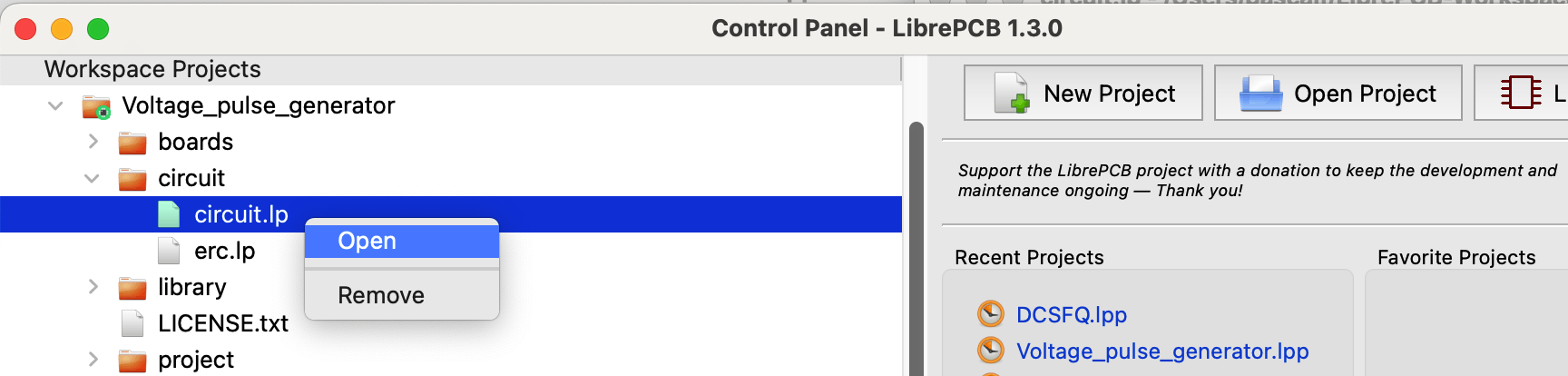
Copy the content of the relevant circuit.lp from LibrePCB circuit.
-
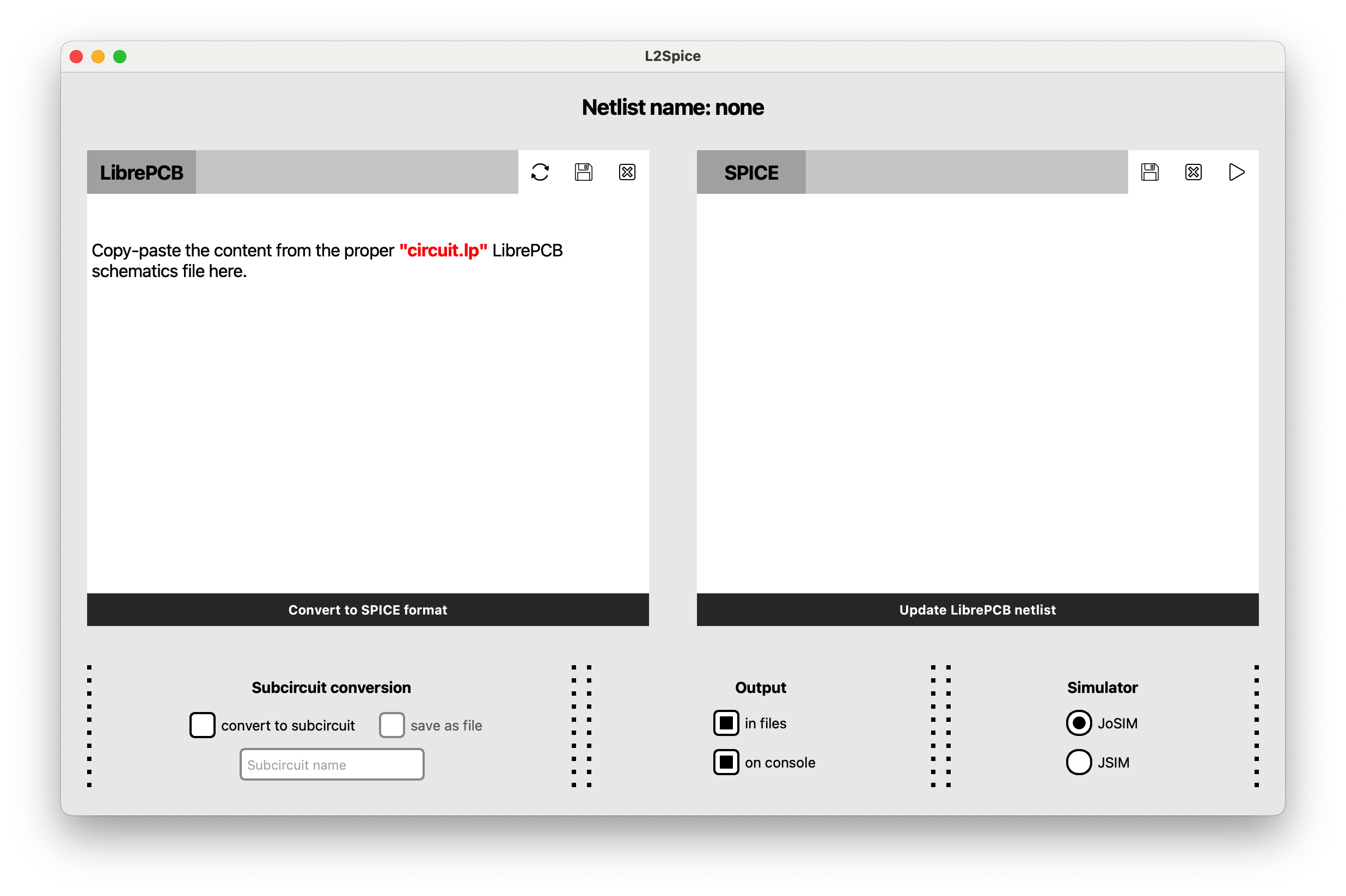
Paste it directly into the text field on the left window of the L2SPICE application.
Method 2: File Loading
- Press File > Open LibrePCB Netlist or use the keyboard shortcut
Ctrl + O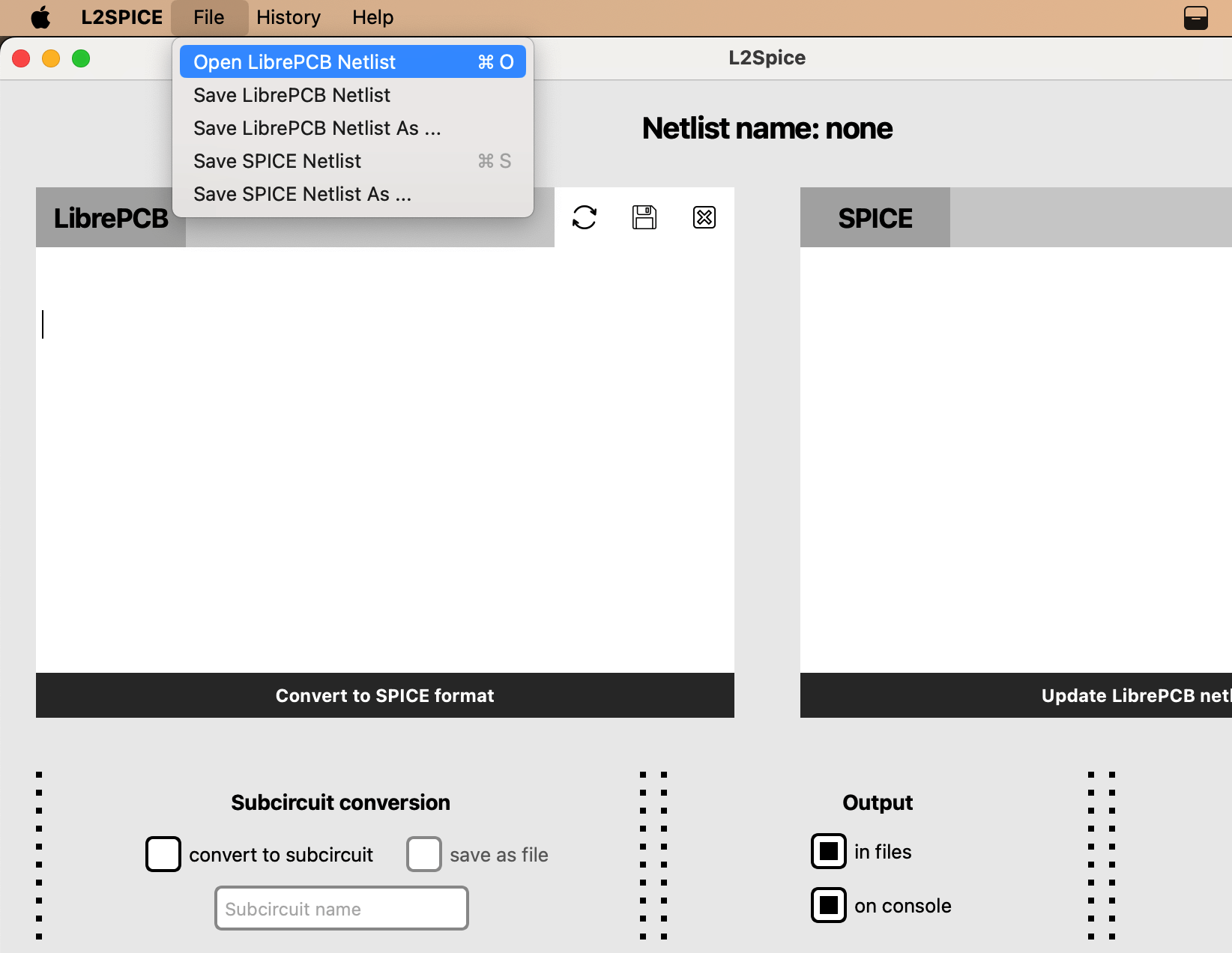
- In the file dialog, select your circuit.lp LibrePCB file (must have
.lpextension) - The circuit will automatically load into the left text editor
File Format
Make sure your LibrePCB file has the .lp extension for proper recognition.
Step 2: Convert to SPICE Format
Once your LibrePCB circuit is loaded:
- Review the circuit netlist content in the left text editor
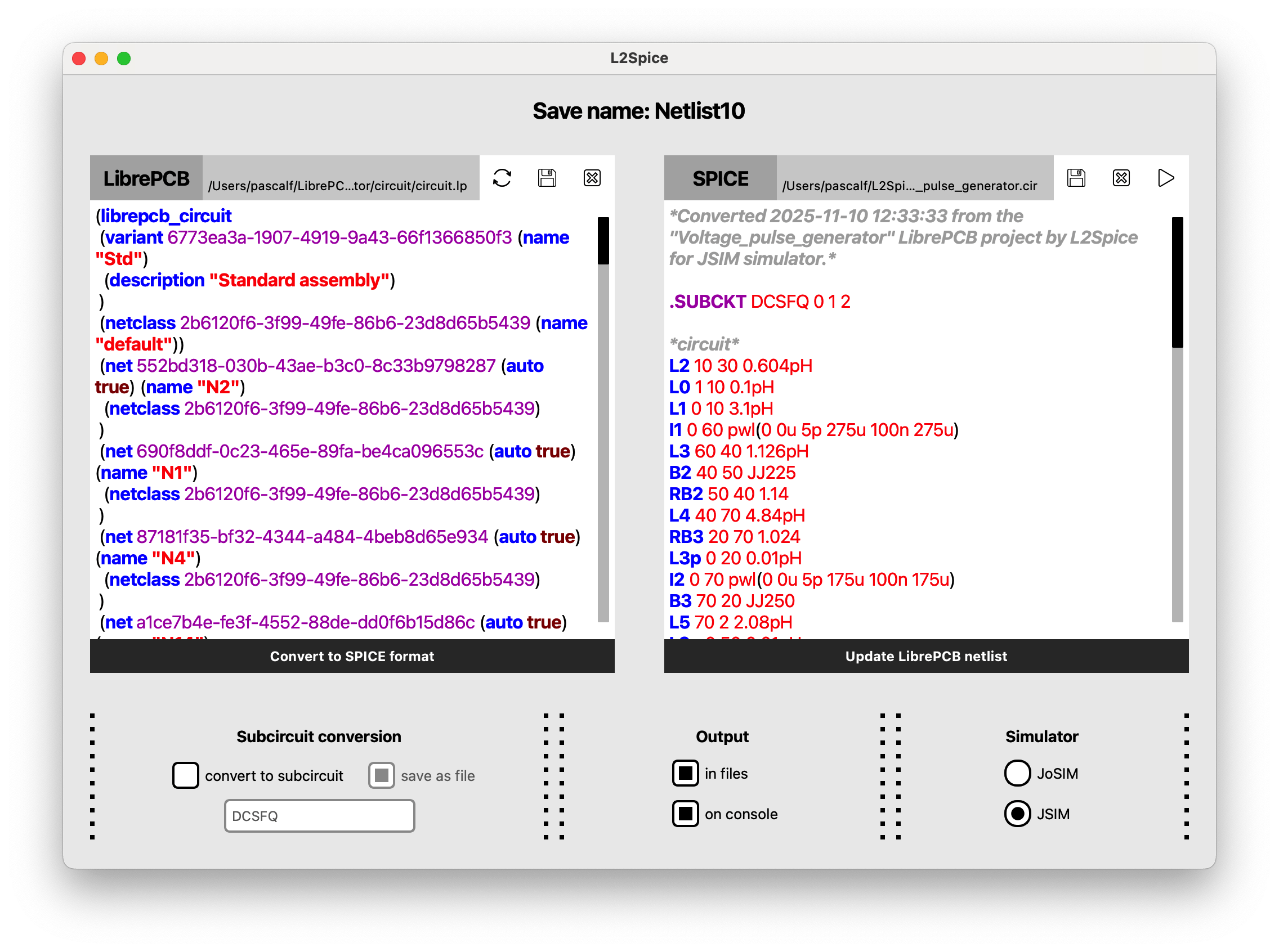
- Click the "Convert to SPICE format" button at the bottom of the left window
- The SPICE netlist will automatically appear in the right text editor
Conversion Complete
Your LibrePCB circuit has been successfully converted to SPICE format and is ready for simulation!
Warning if your circuit contains subcircuits
If your main netlist contains subcircuits (like in the netlist above) you must convert them first as subcircuits one by one with the above procedure. Once the first subcircuit is converted and saved, clear the SPICE netlist window with the Close and clear icon at the top of the SPICE netlist window.  Then start again the procedure for each other subcircuit before converting the main circuit. At last convert the main circuit and save explicitely the corresponding SPICE netlist with the Save SPICE Netlist As ... shown below. (The procedure will be made easier and automatic for next L2SPICE releases.)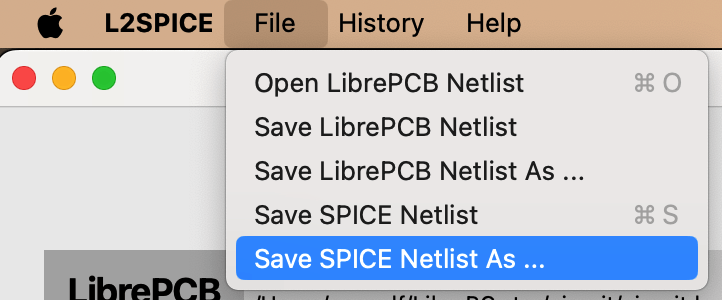
FrugalEDA is open source software. For the latest updates and source code, visit our repository.